

Custom Translation Integration Setup Guide
Need to utilize your own translation tool within Knak? Follow this easy guide to get a custom translation integration working using the Knak public API. With a custom translation integration, you can initiate translations from the Knak builder and have your custom translation tool process and upload the translated versions of your Knak asset. Let’s get started!
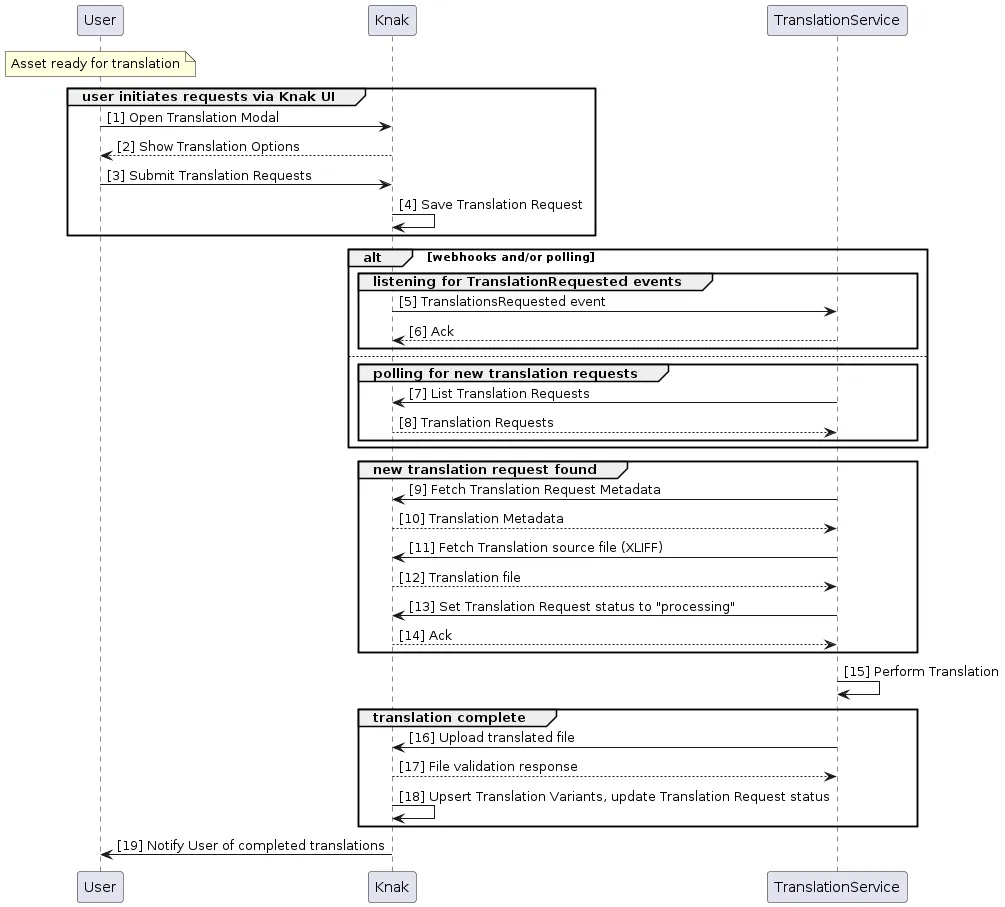
High-Level Flow
Section titled “High-Level Flow”A custom translation integration comprises the following:
- Some configuration in Knak that allows the Knak user to initiate a translation request to a custom translation platform
- Your web service which interacts with the Knak public API and:
- monitors for new translation requests
- fetches and translates asset contents
- uploads the translated content back to Knak
Authentication
Section titled “Authentication”Depending on your application requirements, you may wish to use either a three-legged OAuth2 flow or a server-to-server API key.
Follow the steps at Setting up an API User for server-to-server authentication with a permanent API key.
If using OAuth 2.0, you can manage your custom OAuth applications in Knak at https://enterprise.knak.io/account/oauth-applications
In either case, the authenticated user will require the “request translations” or “request translations for unapproved assets” permission.
Create a Webhook
Section titled “Create a Webhook”Webhooks let Knak trigger HTTP requests to your system.
Use this to listen for the translation_requested event, which signals that a Knak user has requested a translation.
Configuration in Knak
Section titled “Configuration in Knak”Creating a webhook (optional)
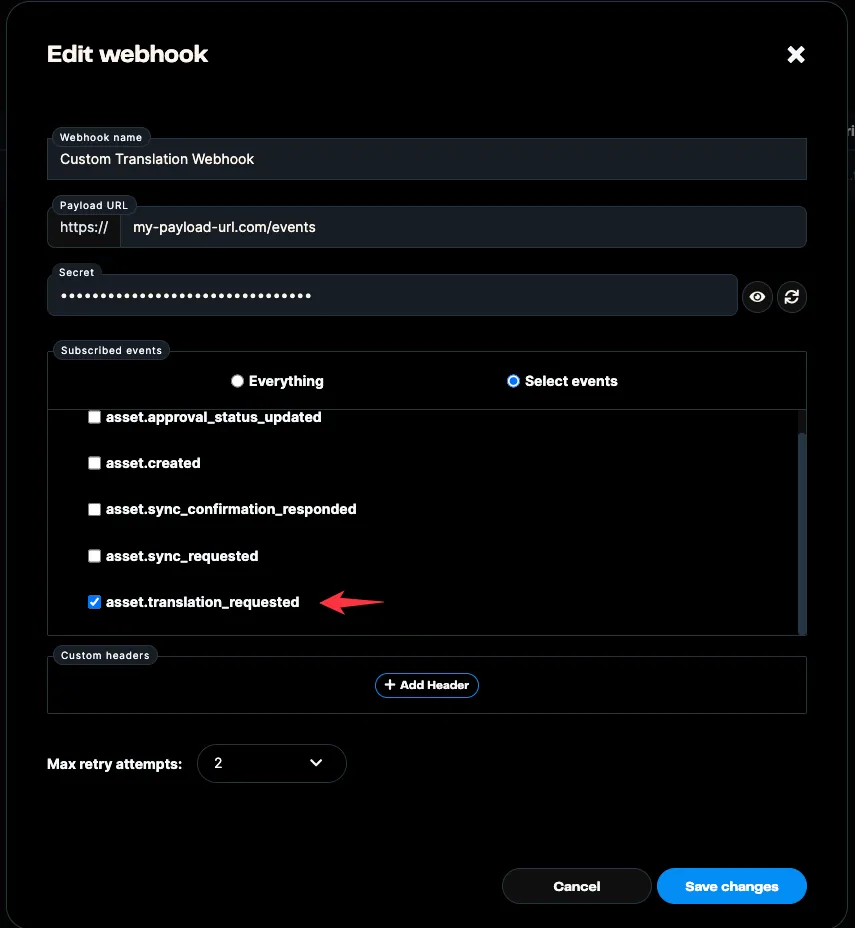
Section titled “Creating a webhook (optional)”Knak supports webhooks that will send out events whenever new translation requests are created in your Knak instance. Setting up webhooks is easy—simply go to the Admin section and click on Integrations > Webhooks.
Create a new webhook and enter the necessary information (name, payload URL).
Under the ‘Subscribed Events’ section, select the asset.translation_requested event to subscribe to.
Some vendors forego webhooks for this integration and instead poll for new translation requests for simplicity. In this case, you can skip this step.
Creating an integration
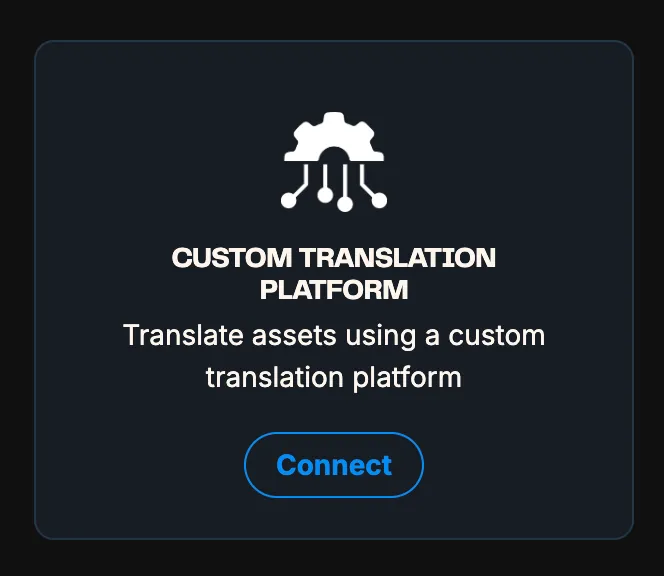
Section titled “Creating an integration”In Knak, navigate to the Admin > Integrations > Platforms page. Scroll down to the Translations section and create a new ‘Custom Translations Integration’.
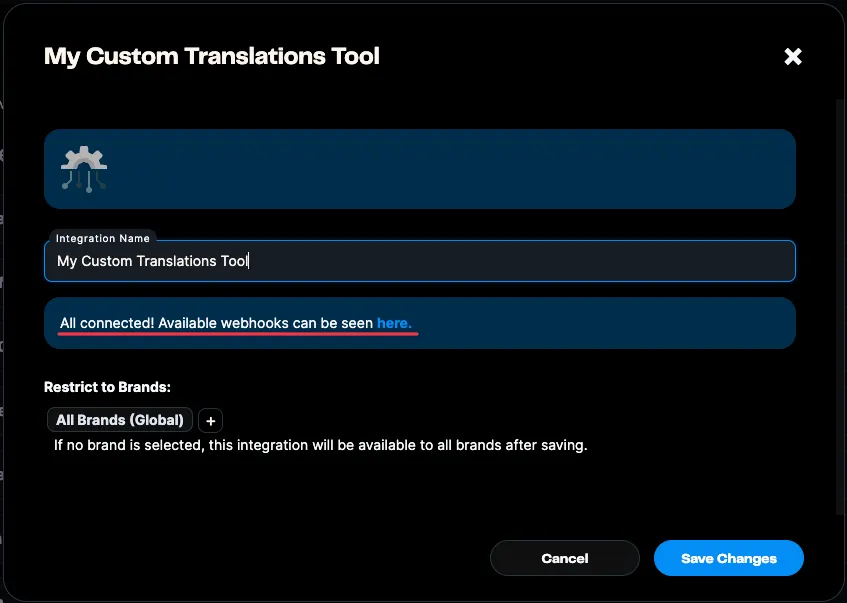
If you created a webhook, this page will show that the integration will send events to your configured URL.
Custom Translation API Flow
Section titled “Custom Translation API Flow”Creating translation requests
Section titled “Creating translation requests”Once you have created a custom translation integration in Knak, you are ready to create translation requests for your assets!
Open a Knak asset, navigate to the ‘Translate’ tab, then click ‘Translate Now’. Select the custom translation integration, then go through the modal steps and select your target languages for translations. Finally, click ‘Submit Request’ to create the translation requests.
Once complete, you should see the translation requests for the languages you selected on the right-hand translate menu.
Using the Translations API
Section titled “Using the Translations API”Now that you have translation requests for your Knak asset, you can start to query and process them by leveraging our translations API endpoints.
For all the available translation endpoints, see our official API documentation: Translation Requests API
The general flow that we recommend for performing translations via the API is as follows:
-
Create translation requests in Knak using the custom translation integration
-
Query for translation requests via the API
- List all translation requests endpoint
- Or wait for webhook event to notify of new translation requests
-
Fetch metadata for new translation requests via the API
-
Fetch the translation source file for translation requests via the API
-
Process the translation source file in your custom translation tool
-
Upload the translated file to a translation request via the API
-
View the translated variant of the completed translation request in the Knak editor
Language Codes
Section titled “Language Codes”Below is the list of default available languages the user will be shown when initiating a translation.
Any custom code mapping can be configured—please reach out to support@knak.com with your requirements.
| Language Code | Language Name |
|---|---|
| zh | Chinese |
| es | Spanish |
| en | English |
| hi | Hindi |
| ar | Arabic |
| pt | Portuguese |
| ru | Russian |
| ja | Japanese |
| de | German |
| ms | Malay |
| id | Indonesian |
| vi | Vietnamese |
| ko | Korean |
| fr | French |
| it | Italian |
| th | Thai |